Incremental RTS Streamer Mode & Accessibility
Mute music for safe streams, show your name, and tune comfort options.
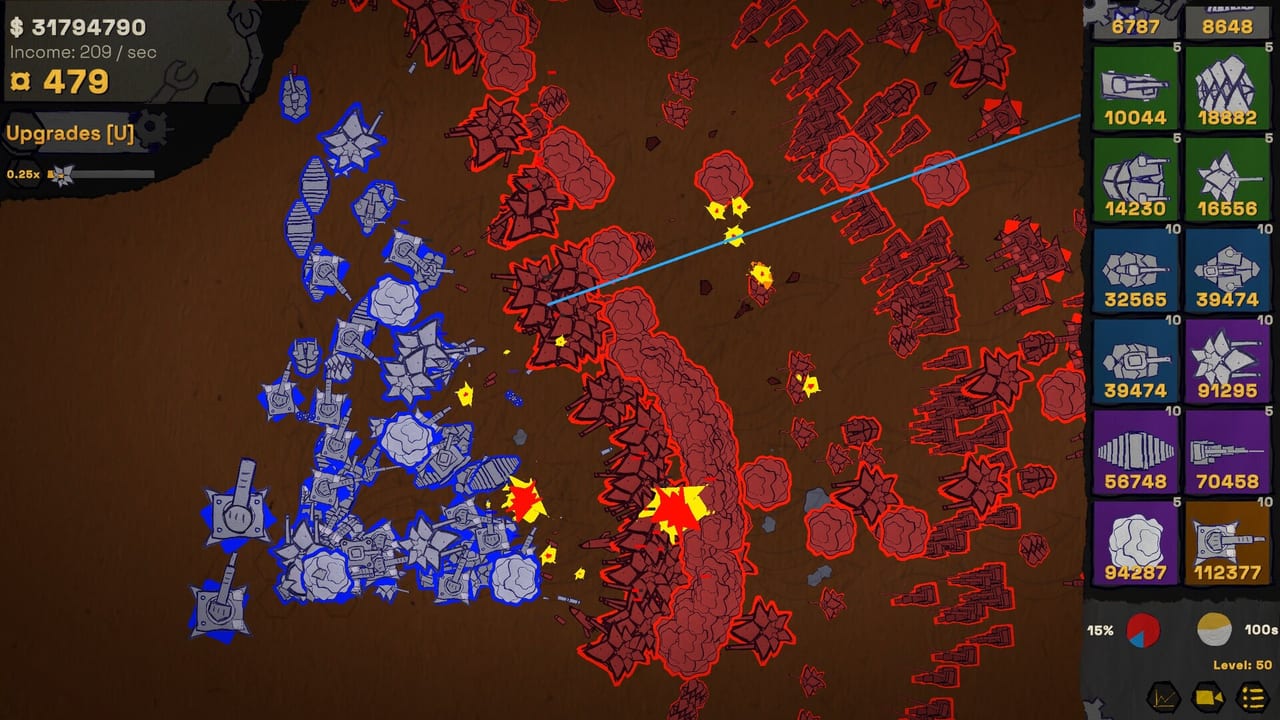
Streamer mode arrived with the 0.5.3 line of Incremental RTS as a creator-friendly toggle: it turns music off and shows your name in places where a generic label might otherwise appear. The goal is simple — content creators can record or go live without risking copyright claims on the game’s soundtrack while still making the broadcast feel personal.
This page covers Streamer mode, the wider accessibility and comfort options players should know, and a practical checklist before you hit Start on OBS or Steam’s built-in recorder. Pair it with Controls for hotkeys and camera, and System Requirements if you are picking a capture PC.
What Streamer mode does
| Behavior | Why it matters |
|---|---|
| Music muted / disabled for the session | Avoids soundtrack copyright strikes on Twitch, YouTube, and similar platforms |
| Your name shown in supported UI spots | Viewers see your run branding instead of a blank or default tag |
| Still a normal gameplay client | Factories, upgrades, and auto-battles work the same |
Streamer mode is not a separate competitive ruleset and not a cheat. It is a presentation / safety switch. Sound effects and other audio buses may still play depending on your volume mix — always verify with a short local recording before a long premiere.
Why creators asked for it
Incremental RTS loves long sessions: semi-idle factories, Frenzy spikes, and upgrade shopping create natural “talk while the army fights” content. Background music that is fine for private play can still trigger automated Content ID or muted VODs when you upload. Muting music in-engine is cleaner than hoping a DMCA claim gets reversed later.
If you prefer your own royalty-free bed, mute in-game music via Streamer mode (or volume sliders), then add a licensed track in your streaming software. Do not assume “quiet enough” equals “claim-safe.”
Accessibility and comfort options
Steam and client settings call out several comfort tools that matter for both streamers and everyday players:
Colorblind support and color alternatives
Visual accessibility goals include colorblind-friendly presentation and color alternatives so unit or UI cues are not locked to a single hue. If you struggle to separate team colors or alert flashes on the paper battlefield, open the accessibility / options menus and try alternate palettes before blaming your monitor.
Custom volume
Separate or flexible volume controls let you keep SFX readable while music is down — essential when Streamer mode kills the soundtrack but you still need spawn and combat feedback. Set game audio as a dedicated VOIP-friendly source in OBS so your mic rides above the swarm.
Camera comfort
Large late battles can strobe with motion. Use zoom and pan (Controls) to keep the focal fight readable for viewers: zoom out for army shape, zoom in for a boss lane, and avoid constant whip-pans that cause motion discomfort. If a capture encode struggles when thousands of units fill the screen, lower capture resolution slightly before lowering game settings into unreadability.
Audio density (post-launch)
Day-one Steam fixes added an Audio density setting aimed at big battles — useful when a Frenzy spike turns the mix into noise on stream. Combine density + Streamer mode so commentary stays clear. See First Day Fixes.
Streaming / recording checklist
- Enable Streamer mode and confirm music is actually silent in a 30-second test clip.
- Set custom volumes so SFX and mic are balanced; add your own music only if licensed.
- Show your name — verify the UI spots that display it on camera.
- Colorblind / color alternatives on if you or a co-host need them; mention it for colorblind viewers when relevant.
- Camera plan: which zoom level you default to during Frenzies; practice pan without covering the factory panel.
- Hotkeys ready: U for upgrades, Ctrl/Cmd multi-buy, day-one multi-buy UI buttons if you prefer mouse-only (Controls, First Day Fixes).
- Performance: close browser clutter; check System Requirements; prefer Steam desktop over Safari web for long captures.
- Saves: Steam Cloud on Steam builds; do not rely on Safari web saves mid-series.
- Overlay: decide whether Steam achievements popups are on-camera (53 trophies can surprise you — Achievements).
- Talk track: explain shared factory costs and Frenzies so chat understands why you are not microing units (How to Play, Frenzies).
Platform notes for creators
- Steam (Windows / macOS): best for achievements, Cloud, and long sessions.
- itch.io desktop downloads: fine for offline recording; still enable Streamer mode if present in that build.
- itch web / Safari: risky for series saves; weak mobile story — do not plan a phone stream as your main setup.
Match your VOD title language to real systems (Frenzies, Sunflowers, Swallow) so searchers find accurate help — and so this wiki’s links stay useful in your description boxes.
Accessibility beyond streaming
Even if you never go live, Streamer mode’s music mute can help focus, sensory sensitivity, or shared living spaces. Color alternatives and volume tools are for everyone. Camera comfort is part of reading Frenzy spikes without fatigue. Treat the options menu as part of learning the game, not as a creator-only ghetto.
Related reading
- Controls — U, multi-buy, zoom, pan, Safari notes
- System Requirements — Windows / macOS specs
- Tools Hub — calculator and other helpers
- Updates / First Day Fixes — Audio density and QoL
- Guides Hub — loop and economy explainers for your audience
Mindset
Incremental RTS already looks great on camera: paper armies, boss names, achievement pops, and quiet lulls between Frenzies. Streamer mode removes the one soundtrack footgun that used to make long uploads stressful. Flip it on, tune accessibility, and spend your attention on the buy menu decisions that actually win runs.
When settings change in a patch, re-run the thirty-second mute test. A single forgotten music bed is all it takes to complicate a VOD — and Streamer mode exists so that mistake stays rare.
Frequently Asked Questions
Quick answers to the most common questions.
What does Streamer mode do in Incremental RTS?
From the 0.5.3 era, Streamer mode turns music off and shows your name in supported places so creators can avoid soundtrack copyright issues while branding their run.
Does Streamer mode disable sound effects too?
It is aimed at music. Verify your volume mix and record a short test clip; keep SFX audible for gameplay feedback unless you mute them yourself.
Are there colorblind options?
Yes. Look for colorblind support and color alternatives in the accessibility / options menus, alongside custom volume and camera comfort habits.
What else should streamers enable after launch?
Audio density helps big battles stay listenable. Day-one multi-buy UI buttons help mouse-focused creators. See First Day Fixes and Controls.
Can I stream the itch.io browser version?
You can, but Safari saves are unreliable and mobile is not optimized. Prefer Steam or a desktop download for long series.